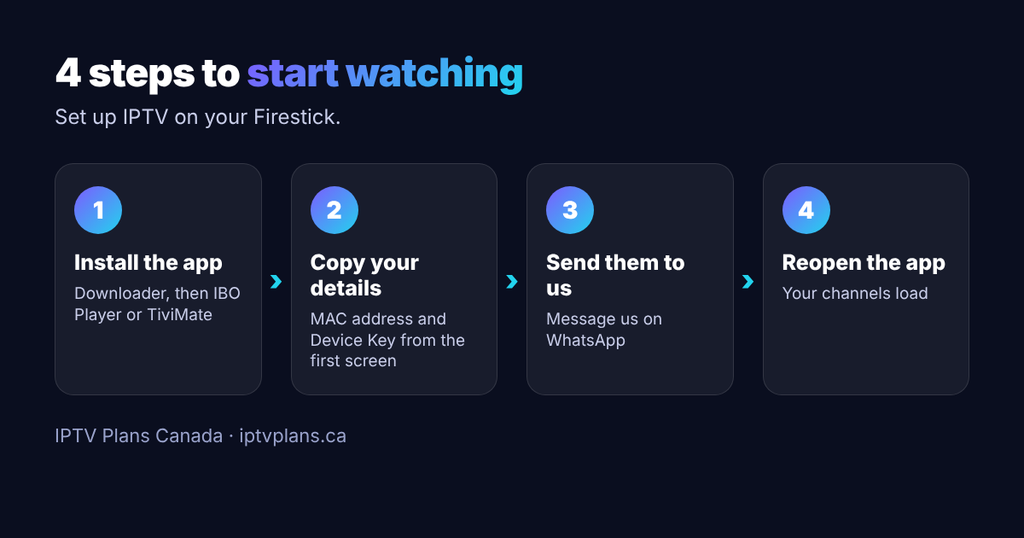
Short answer: To use IPTV on a Firestick, you install a player app (we suggest IBO Player or TiviMate), copy two details from the app, the MAC address and the Device Key, and send them to us on WhatsApp. We add your playlist to your player account, and you restart the app. Most people finish in about 10 minutes.
This IPTV Canada for Firestick guide from IPTV Plans Canada walks through each step. It also lists the fixes for the problems we see most often.
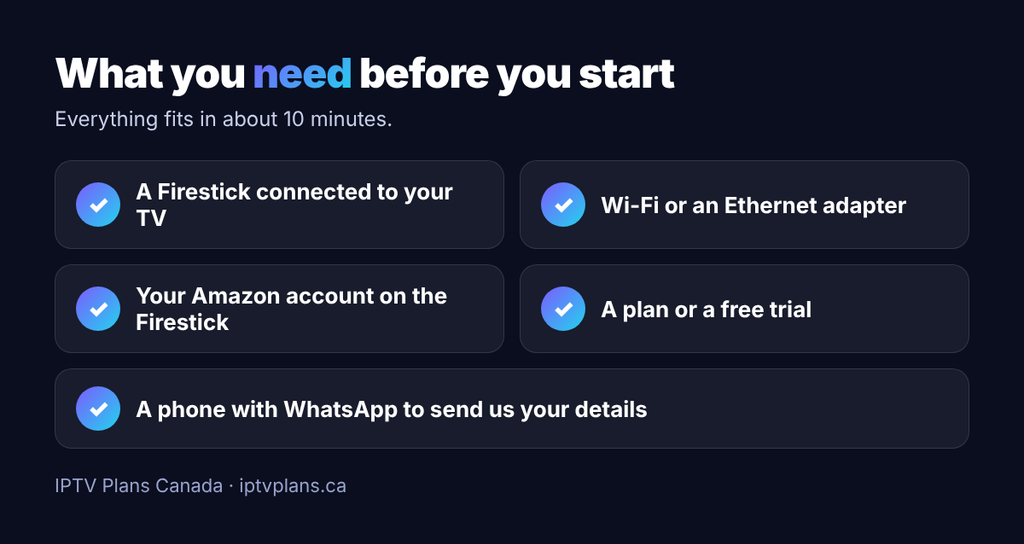
What you need before you start
- An Amazon Firestick connected to your TV and your Wi-Fi
- Your Amazon account signed in on the Firestick
- An IPTV Plans Canada subscription, or a free trial if you want to test first
- A phone with WhatsApp, to send us your details
- About 10 minutes
IBO Player and TiviMate are only players. They do not come with channels. Your channels come from the playlist we add to your account.
Step 1: Install Downloader
Downloader is a free app that lets your Firestick install other apps from a link or code.
- On the Firestick home screen, select Find, then Search.
- Type Downloader and select it in the results.
- Select Get or Download, then Open when it finishes.
Step 2: Allow Downloader to install apps
- Go to Settings, then My Fire TV, then Developer Options.
- Select Install unknown apps and turn Downloader on.
If you do not see Developer Options, go to Settings > My Fire TV > About and click the name of your Firestick seven times. Then go back. Menu names can differ slightly between Firestick versions.
Step 3: Install IBO Player or TiviMate
Message us on WhatsApp and tell us which app you want. We reply with the current Downloader code or link for it. Then:
- Open Downloader and type the code or link we sent into the address box.
- Select Go and wait for the download.
- Select Install, then Open.
Which app should you pick?
- IBO Player is the simplest. You send us the two details it shows, and we add the playlist for you. You type nothing else.
- TiviMate is popular for its TV guide layout. Some of its features need the app’s own paid upgrade, and the app tells you which. We can set it up with your details, or send you login details to enter yourself.
Step 4: Find your MAC address and Device Key
Open the player app. On its first screen you will see a MAC address and a Device Key. A MAC address is a set of letters and numbers separated by colons.
The easiest way to avoid typing mistakes is to take a clear photo of the TV screen with your phone. One wrong character stops the activation.
Step 5: Send the details to us
Send us a WhatsApp message with:
- Your MAC address and Device Key (the photo is fine)
- The app you installed
- Your plan, or that you want a free trial
We add your playlist to your player account. Requests are usually added in under 5 minutes. Then close the app completely and open it again, and your channels will load.
Fixes for common problems
The app opens but shows no channels. Close the app fully and reopen it. If it is still empty, unplug the Firestick for 30 seconds, plug it back in and try again. If nothing changes, message us.
“Install blocked” when installing the app. Step 2 was not finished. Turn Downloader on under Install unknown apps and try again.
The Downloader code does not work. Codes and links can change. Ask us on WhatsApp for the current one.
The activation does not work. Check the MAC address and Device Key against your photo, one character at a time. If they are right, send us the photo and we will check.
Buffering or freezing. Restart your router and the Firestick, close other apps on the Firestick, and use a wired Ethernet adapter or a strong 5 GHz Wi-Fi signal if you can. If it keeps happening, tell us the channel and the time. Free server switching is included with our plans, so we can move you to the other server.
Need help?
Our setup guides cover other devices, and the devices page lists what works. Support answers on WhatsApp any time. You can ask for a free trial first, or see our plans in CAD when you are ready to subscribe.
This guide is general information for setting up your own device. Check that you are allowed to use any service you subscribe to in your area.